Use Rendezvous with Claude or ChatGPT
Connect Rendezvous to Claude or ChatGPT and plan, design and follow your events in plain words. Nothing is sent, published or charged until you confirm it.
If you already talk to Claude or ChatGPT, you can connect it to your Rendezvous account and work on your events in the same chat: "make a page for Ana's 40th on 12 June", "which of my events are coming up?", "who hasn't replied to the summer party?" Your assistant runs on your own Claude or ChatGPT account; Rendezvous doesn't add an AI of its own and doesn't charge anything for the connection.
To see it at work before you connect, with real requests and the screens they made, see Rendezvous with ChatGPT and Claude.
One rule holds whatever you ask: nothing is sent, published or charged without you confirming it in Rendezvous. Your assistant can read what you allow it to read, build drafts and plan with you, and prepare the rest, but invitations, messages and publishing your event are always your own click, in Rendezvous.
Everything below the two connection sections holds for both assistants: the same permissions page, the same limits, the same confirm in Rendezvous. Where they differ, Claude and ChatGPT: what differs says how. For every tool your assistant can use, one line each, see the AI assistant tools reference.
The quickest way is the button in your account settings. Connecting takes a minute.
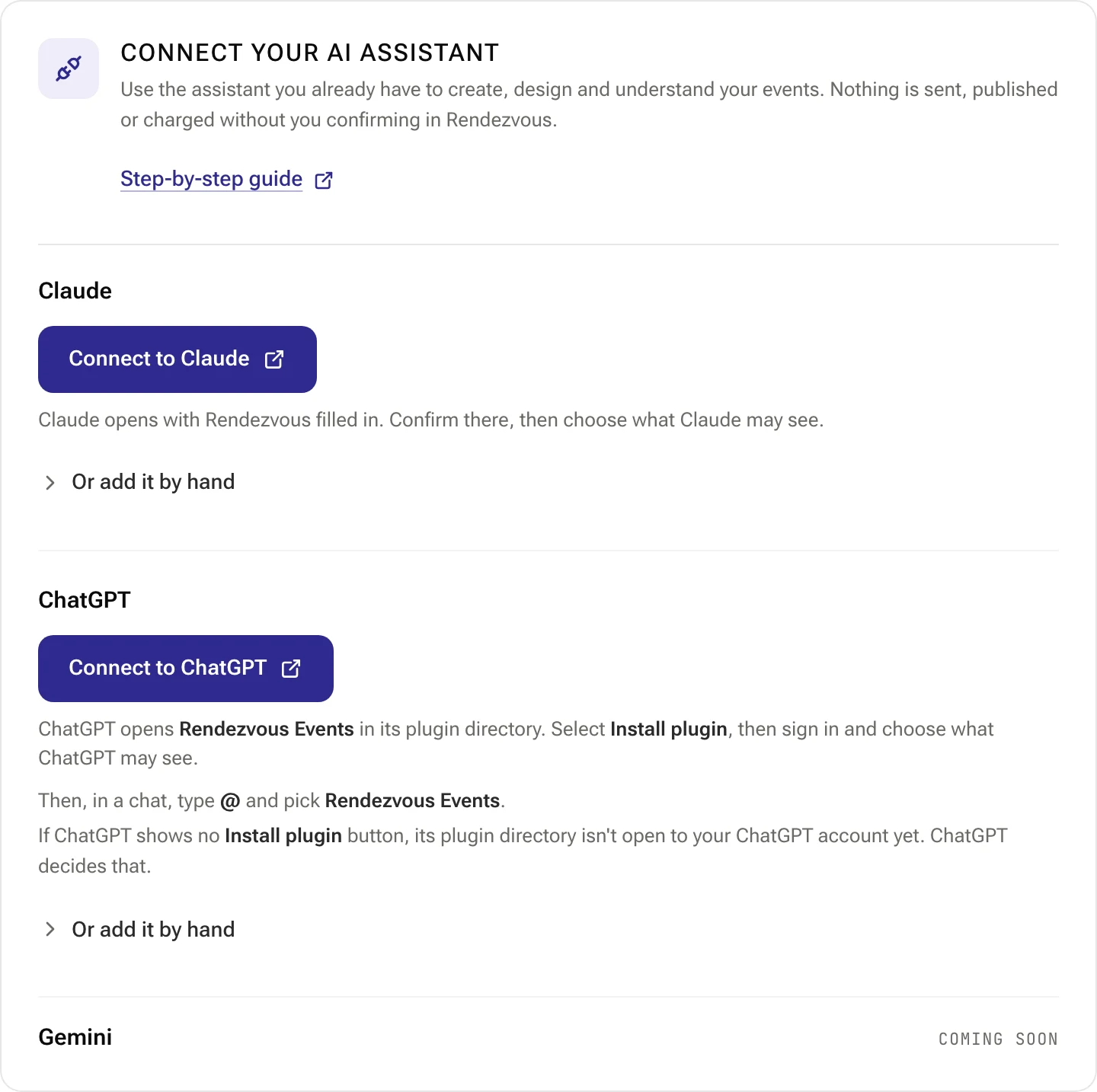
Open Account and find Connect your AI assistant. Under Claude, select Connect to Claude. Claude opens in a new tab with its Add custom connector dialog already filled in: the name "Rendezvous" and the Rendezvous address.
Claude tells you the values came from a link. Check that the name is Rendezvous, then add the connector. Nothing is added until you confirm there.
Select Connect. Claude sends you to Rendezvous: sign in if you aren't already, then you'll see the permissions page described below. Untick anything you don't want, choose Allow, and you're back in Claude, connected.
If the button doesn't suit you — you're in the Claude desktop app, say — add Rendezvous yourself. Under Connect to Claude, open Or add it by hand.
Open Account and find Connect your AI assistant. Under Or add it by hand, copy the server address.
In Claude, go to Customize → Connectors, select Add, then Add custom connector. Give it a name (for example "Rendezvous"), paste the address, and select Continue, then Add. Keep any settings Claude marks Detected.
Select Connect. Claude sends you to Rendezvous: sign in if you aren't already, then you'll see the permissions page described below. Untick anything you don't want, choose Allow, and you're back in Claude, connected.
Rendezvous is in ChatGPT's plugin directory, under the name Rendezvous Events. Connecting takes a minute.
Open Account and find Connect your AI assistant. Under ChatGPT, select Connect to ChatGPT. ChatGPT opens in a new tab on the Rendezvous Events page of its plugin directory. You can also find it there yourself: open chatgpt.com/plugins and search for "Rendezvous Events".
Check that the plugin is Rendezvous Events, then select Install plugin.
ChatGPT sends you to Rendezvous: sign in if you aren't already, then you'll see the permissions page described below. Untick anything you don't want and choose Allow.
Start a new chat, type @ and pick Rendezvous Events.
The permissions page names ChatGPT and marks it Verified, the same way it does for Claude. Your connected assistants list it as ChatGPT too. If the page says An unverified app instead, check that the address it sends you back to is chatgpt.com and that you just started the connection yourself. Only then choose Allow.
If your ChatGPT lets you add custom servers, you can add Rendezvous yourself instead. Under Connect to ChatGPT, open Or add it by hand.
Open Account and find Connect your AI assistant. Under Or add it by hand, copy the server address.
Open chatgpt.com/plugins. Select Add, then Add custom MCP server. Name it "Rendezvous" and add a short description.
Under Connection, choose Server URL and paste the address. For authentication choose OAuth, read the warning and select I understand and want to continue.
Select Create as a plugin and install it. When ChatGPT sends you to Rendezvous, sign in and you'll see the permissions page described below. Untick anything you don't want and choose Allow.
Start a new chat, type @ and pick Rendezvous, the name you gave it.
If ChatGPT doesn't show Add custom MCP server, your ChatGPT plan or workspace doesn't allow custom servers. Use the plugin directory instead.
The permissions page lists, in plain words, what you are allowing. Each line is a tick box, and you can untick any of them. Here is each line as the page words it, and what it lets your assistant do today:
| Permission | Ticked to start with | What it allows today |
|---|---|---|
| See your events, their pages and RSVP numbers | Yes | Read your events and their details, pages and design, pictures of the draft page, saved page versions, the schedule, guest groups, the seating plan, polls and RSVP questions with their counts, reply numbers, what's left to do, and how invitations and messages were delivered. Numbers only: names need the guest names line. |
| Create events, edit their pages as drafts, and plan their schedule, polls and tables | Yes | Create events as private drafts and copy one; change the theme, colours, fonts, sections, custom code and images of any page (always as a draft); bring back an earlier page version; and, on an event never published, change its details, cover, schedule and polls. It also adds, changes and removes tables in the seating plan. |
| See guest names, replies, groups, tables and what they typed in RSVP answers. Never emails, phone numbers or addresses | No | Name the guests behind the numbers: who replied what, who hasn't replied, who is in which group, who sits where, whose invitation failed. It also shares what guests typed in RSVP answers, with any contact details in them masked. Postal addresses are never shared. |
| Add guests you give it, group them and seat them (no invitations are sent) | Yes | Check a guest list and add it to an event never published; group guests into parties and households; seat guests and groups at tables. |
| Prepare things for you to confirm: publishing, invitations, reminders, messages and changes to a published event. Nothing is sent until you confirm in Rendezvous. | Yes | Prepare publishing, invitations, reminders and messages, and changes to an event already published: its details or cover, new guests, its schedule or its polls. It can also check whether you confirmed. |
Underneath, the page says it once more: it can never send, publish or charge anything without you confirming in Rendezvous.
Your assistant only ever sees the events you manage, with the same rights you have — nothing more, even if your account has extra access elsewhere. The event's own plan applies as it does in Rendezvous: if the plan doesn't include something, your assistant tells you so instead of doing it.
What you let your assistant see goes to Claude or ChatGPT under your own account there, the same as anything else you share in a chat.
Everything your assistant does is one of two kinds.
Your assistant does these as you ask, because they are drafts, private planning, or on an event nobody can see yet:
Anything guests would see on a published event, and anything that sends, is only prepared:
Your assistant gives you a link to a page in Rendezvous that says exactly what will happen, with today's numbers. Nothing is sent or published from the chat: only the button on that page does it. See Confirming.
Ask in your own words; you never need a tool's name. Each part below gives a few things you might type, what your assistant can take from you, what the event's plan needs, and whether it happens straight away or waits for your confirm. The AI assistant tools reference has the same, tool by tool.
"Which of my events are coming up?" · "How are all my events doing?" · "What do I still need to do for the wedding?" · "Make an event for Ana's 40th, Saturday 12 June at 19:00, at Villa Bura, Put Firula 14, Split." · "Same as last year's summer party, but for this year."
Who can see the event and who can join it are never changed by your assistant.
"Show me the designs." · "Make it feel like a Día de los Muertos party: bold colours, papel picado, marigolds." · "Use a serif for the headings." · "Add a section with the dress code under the welcome." · "Move the gallery to the end." · "Show me how it looks on a phone." · "Undo the last change to the page."
Page changes are always drafts, on every plan and every event. Guests see them once you publish (see Publishing).
"Use the photo I just attached as the cover." · "Make three illustrations for the page: a cover, a border and a pattern." · "Which pictures does the event have?" · "I want to upload photos from my phone."
"Add the day: ceremony 16:00, drinks 17:00, dinner 19:30, first dance 22:00, late snack 01:00." · "Move dinner to 20:30." · "Hide the after-party from guests for now." · "Remove the shuttle."
Your assistant never writes a schedule as text on the page: it uses the real schedule, which guests see in the page's schedule section. See Schedule & timeline.
"Here's my list: …" (pasted from a spreadsheet, a note or an email) · "Everyone may bring one guest." · "Did Marko reply?" · "Who said no?" · "Who hasn't replied yet?" · "Put the Horvats in one group."
There is no removing guests and no undoing an import from the chat: that stays in Rendezvous. See Managing guests.
"Add ten tables of eight in the garden." · "Seat the Horvat family at table 3." · "Who has no table yet?" · "Table 5 seats ten now." · "Seat everyone who has no table yet."
On Standard or Premium:
A guest sees their table, its name and their tablemates on your page when it has a section that shows their assignment. So the seating plan changes straight away only on an event never published; on a published one, all the changes (tables and seats together, even seating guests at a table added in the same request) go into one request for your confirm, where you see each guest who moves. Capacity is checked again when you confirm. Nothing is sent either way. See Seating & assignments.
"Ask guests for their meal: fish, meat or vegetarian." · "Add a dietary needs question." · "Make a poll for the first-dance song." · "Close the shuttle question." · "Remove the 'vegan' option."
Rendezvous has two kinds: RSVP questions, asked while guests reply (meal, dietary needs, song requests…), and polls, voted on the event page during the event.
On an event never published these happen straight away. On a published event they are prepared for your confirm. A change that would delete answers guests gave (removing an option with votes, or a question or poll that has answers) is always prepared for your confirm, on any event: the page says how many answers would be deleted, and the button says so too. Nobody is notified of a poll change. See Questions & polls.
"How is the wedding going?" · "How many seats are left?" · "Did the reminder get replies?" · "How many want fish?" · "Any allergies I should know about?"
"Send the invitations." · "Invite only Marko and Iva." · "Remind everyone who hasn't replied." · "Tell everyone who's going that parking is behind the venue." · "Did everyone get the invitation?"
All of these are prepared for your confirm:
Invitations by text message stay in Rendezvous, where you pick the guests and see what each text uses. See Messages & reminders.
"Publish it." · "Put the page changes live."
Your assistant prepares publishing the event for the first time, or publishing the page changes it made on a live event. Ask it for a picture of the draft first. The confirm page says who will be able to open the page; you set that in Rendezvous. Publishing invites nobody. If the page is edited after the request was prepared, the request stops and has to be prepared again, so you never publish something you weren't shown. If the page has custom CSS or HTML and the event is on Free, the confirm page says so and its button publishes the page without it; the draft keeps it, so with Standard or Premium you publish again and it goes live. The plan's link is on the confirm page.
Your assistant designs the page itself, the way you would in the page editor. Ask for a style ("bold and colourful", "quiet and elegant", "a Día de los Muertos party") and it restyles the page: the design, then colours and fonts, then sections and words, then pictures, then custom CSS for the look, and a picture of the result. A named style or "make it bold" is a full restyle, not two changed colours.
When your assistant has prepared something, it gives you a link to a page in Rendezvous. You have to be signed in as the account that connected the assistant: the link is no use to anyone else, a co-planner of the same event included.
The page says what is about to happen in one sentence, then the facts as they are right now: who receives it and how many, by email or text message, how many text messages it uses, who will be told if the event moved, who will be able to open the page once it is published. If the numbers changed since your assistant prepared it — a guest was added, someone replied — the page shows the current ones and says so. For a message it shows the draft as it reads now. For invitations and a guest import it lists every person, each with the email or phone involved: on a private event that contact is what lets a guest in, so check it.
Then it is one button, named for what it does: Publish event, Send 42 invitations, Send reminder to 6 guests, Send message, Save changes, Add 12 guests, Save 3 changes (for a schedule or polls), or Save and delete 5 answers when a poll change deletes answers guests gave. Or choose Not now to leave it waiting, or Cancel this request.
Back in the chat, your assistant can check whether you confirmed and what happened ("Sent 42 invitations").
Some things have no tool at all, whatever you allow. They are done in Rendezvous itself:
Without the guest names permission, your assistant gets numbers only: how many replied, how many picked fish, how many haven't answered. When it checks a guest list for you, it also can't tell you which people are already on the event's list — they're simply counted as skipped. Your assistant also finds guests by their names, so without this permission it can't invite or remind only the guests you name, put particular guests in a group, or seat them; it can still prepare invitations and reminders for everyone they apply to. Tick guest names on the permissions page if you want your assistant to name names; guests' emails, phone numbers and postal addresses stay in Rendezvous either way.
Pictures of your page never show what guests made: the guest list, posts, photos and poll results appear as placeholders, whatever you allowed.
The tools, permissions and confirm are the same. What you notice is different:
Rendezvous keeps each assistant to a fair pace, so one busy chat can't slow everyone down. In everyday use you won't notice:
You can disconnect at any time, from either side. Disconnecting in Rendezvous is the one that is sure to end the access.
Under Account, Connected assistants lists each connection with what it may do, when it connected and when it was last used. Select Disconnect next to one and confirm. Its access ends straight away: the very next thing it asks Rendezvous is refused. Each assistant is listed by its name: Claude, Claude Code or ChatGPT.
Go to Customize → Connectors and Remove the Rendezvous connector. To be sure Rendezvous has cut access too, also disconnect it in Rendezvous.
Remove the Rendezvous Events plugin in ChatGPT. To be sure Rendezvous has cut access too, also disconnect it in Rendezvous.
To connect again later, add Rendezvous to your assistant again and you'll see the permissions page afresh. Rendezvous asks every time; it never reconnects silently.
Connecting Claude again replaces your earlier Claude connection once the new one is working, so it's listed once. Claude Code is different: each computer you connect it from is its own connection, listed as On this computer with the date and time it connected, so you can disconnect one machine and keep the others. If a connection you no longer use is still listed, disconnect it.
A connection your assistant hasn't used for a month stops working on its own and drops off the list. Deleting your Rendezvous account disconnects every assistant with it.
If Rendezvous ever pauses assistant connections, this page and the Connect your AI assistant card go away for a while and your assistants can't reach your account. Your connections are kept, marked Paused under Connected assistants, and work again when assistants are back. You can still Disconnect any of them there to end it for good.
The permissions page shows this for a request it no longer knows: one that waited too long, one you already answered (going back to it after choosing Allow or Don't allow), or an old link. Nothing was connected. Start again from your assistant: select Connect again in Claude, or connect the plugin again in ChatGPT.
A confirm link only works for the Rendezvous account that connected the assistant. Most often you're signed in to a different one: the page shows which account you're signed in as, with Switch account to sign in as the right one and come straight back. A co-planner of the same event sees this page too — the request is yours alone.
A request that ran out after 24 hours doesn't show this page: it says This request has expired. Ask your assistant to prepare it again.
The button opens Claude on the web, in a new tab, with the Add custom connector dialog filled in. If no tab opens, or Claude opens without that dialog, add Rendezvous by hand instead (open Or add it by hand under Connect to Claude). It ends in the same connection.
The Rendezvous Events plugin from ChatGPT's directory gets new tools once ChatGPT has reviewed the new version, so a new tool can arrive there a little later. If you added Rendezvous by hand, ChatGPT can keep showing the list it had: open the plugin in ChatGPT, select Settings, then Refresh tools.
Your assistant couldn't make a picture of the page this time. It still has the page's outline — its theme and sections, top to bottom — and a link to open the draft in the page editor. Open that link to see the page yourself. It doesn't mean anything is wrong with your page.
In ChatGPT the picture of your page shows in a Rendezvous card under the reply, and some ChatGPT apps — on a phone, for example — don't show the card. ChatGPT then gives you an Open the picture link instead: it opens a picture of the whole page in your browser without signing in, and stops working after 30 minutes or when you disconnect the assistant. ChatGPT may ask you to confirm the link before it opens. To change anything, open the draft from the link your assistant gives you; an exceptionally long page may be cut short in the picture, and your assistant says so.
This couldn't be done comes with one sentence saying why: you no longer manage the event, the page was edited after the request was prepared, the message changed, there was nothing left to publish, or the event's plan doesn't include it. Nothing else was sent or changed. Sort out what it names, then ask your assistant to prepare it again.
This can no longer be done means the same, found before you pressed the button: the only choice left is Cancel this request.
You pressed the button, but Rendezvous didn't record how it ended. Open the event and check what was sent or changed before you ask your assistant to prepare it again, so nothing goes out twice. Working on it… is different: it is still running, and the page updates by itself.
If the page says Something went wrong on the way, it is showing where things stand now. If it still offers the button, it is safe to press it again — it works once.
A busy or too many requests answer changed nothing. After took too long or too large, a change may still have been made: ask your assistant to look at the event before it tries again.
Write to support@rendez.us. Say which assistant you use (Claude or ChatGPT), what you asked it and what happened. Never send a password or a sign-in code.
What your assistant reads goes to Claude or ChatGPT under your own account there. How Rendezvous handles it is in the privacy policy's AI assistants section.